article
Drag-to-Reorder List Items with Framer Motion
Learn how to use Framer Motion to easily implement drag reordering in your lists.
If you have an application with a list of items, like a to-do list, shopping list, a list of the greatest basketball players, etc. You might want to reorder your list once you have some items added to it.
Typically, you would have to create some logic to manipulate the DOM and worry about changing the z-index of all the list items as they pass over each other. Framer Motion abstracts a lot of the logic away, and with a few drop-in components, you can have a re-orderable list.
You'll start with an application for people to list choices for their greatest basketball players of all time.
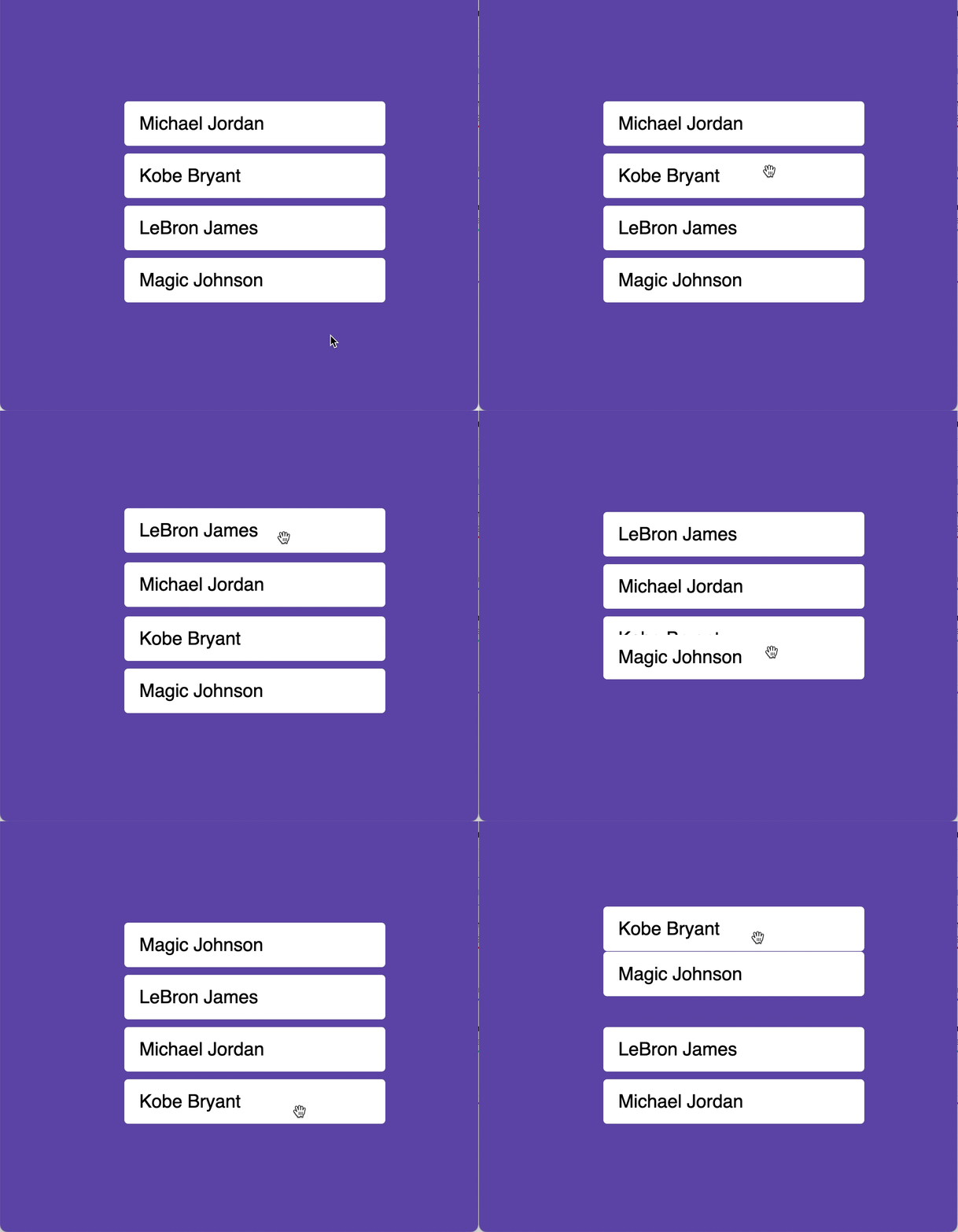
You can follow along with the code from this Code Sandbox
import { useState } from "react";

const listItems = [
  { name: "Michael Jordan", id: 1 },
  { name: "Kobe Bryant", id: 2 },
  { name: "LeBron James", id: 3 },
  { name: "Magic Johnson", id: 4 }
];
export default function App() {
  const [items, setItems] = useState(listItems);

  return (
    <ul>
      {items.map((item) => (
        <li key={item.id}>{item.name}</li>
      ))}
    </ul>
  );
}
Import and Use the Reorder.Group component
You first need to import the Reorder component from Framer Motion's big bag of tricks. This gives you access to the Reorder.Group and the Reorder.Item components and all their props.
Next, you want to wrap the list items in the Reorder.Group component. Since you already have ul element around the list items, replace the ul with Reorder.Group.
import { useState } from "react";
// import Reorder
import { Reorder } from "framer-motion"

const listItems = [

  { name: "Michael Jordan", id: 1 },
  { name: "Kobe Bryant", id: 2 },
  { name: "LeBron James", id: 3 },
  { name: "Magic Johnson", id: 4 }
];

export default function App() {
  const [items, setItems] = useState(listItems);

  return (
    // Replace the ul tag
    <Reorder.Group>
      {items.map((item) => (
        <li key={item.id}>{item.name}</li>
      ))}
    </Reorder.Group>
  );
}
Reorder.Groupautomatically gets rendered as aul. You can change it toolusing theasprop.
Next, add the values prop to Reorder.Group and pass in an array with the values of the items you want to reorder.
For this example, use the items state variable. Then add the onReorder prop; this takes a function. This function must update the state of what you pass into the value prop, so you'll use setItems.
export default function App() {
  const [items, setItems] = useState(listItems);

  return (
	// Add values and onReorder props
    <Reorder.Group values={items} onReorder={setItems}>
      {items.map((item) => (
        <li key={item.id}>{item.name}</li>
      ))}
    </Reorder.Group>
  );
}
Make Items Reorderable with Reorder.Item
<CourseWidget course="animate-react-apps-with-framer-motion" />Finally, to make the rendered items in your list actually reorder when you drag them, you have to turn them into Reorder.Item components.
In your code replace the li tag with Reorder.Item. You also need to add a value prop to Reorder.Item and pass it the item you want Reorder.Item to be.
export default function App() {
  const [items, setItems] = useState(listItems);

  return (
    <Reorder.Group values={items} onReorder={setItems}>
      {items.map((item) => (
		// Change the li to Reorder.Item and add value prop
        <Reorder.Item key={item.id} value={item}>
          {item.name}
        </Reorder.Item>
      ))}
    </Reorder.Group>
  );
}
Now you can click and drag up or down any item in your list and the list will automatically shift positions and animate.
Reorder.Item is really a motion component under the hood, so it accepts all the same props. So you can hover animations, exit animations, and all the other Framer Motion features.
Conclusion
You just achieved drag-to-reorder with a few lines of declarative code:
- You imported the
Reordercomponent from Framer Motion. - You wrapped the list items with the
Reorder.Groupcomponent by replacing theultags. You also added thevaluesandonReorderprops. - You replaced the
litag it theReorder.Itemcomponent added thevalueprop to represent the list item.